
AI Image Editor with Prompts — Edit Photos by Describing What You Want
Learn how to edit and generate product photos using natural language prompts. Brush an area, describe the change, and AI does the rest. 6 real prompt templates with before/after image comparisons. Most common edits don't need prompts — background removal, upscaling, and retouch are instant one-click.
Try Prompt-Based Editing — Free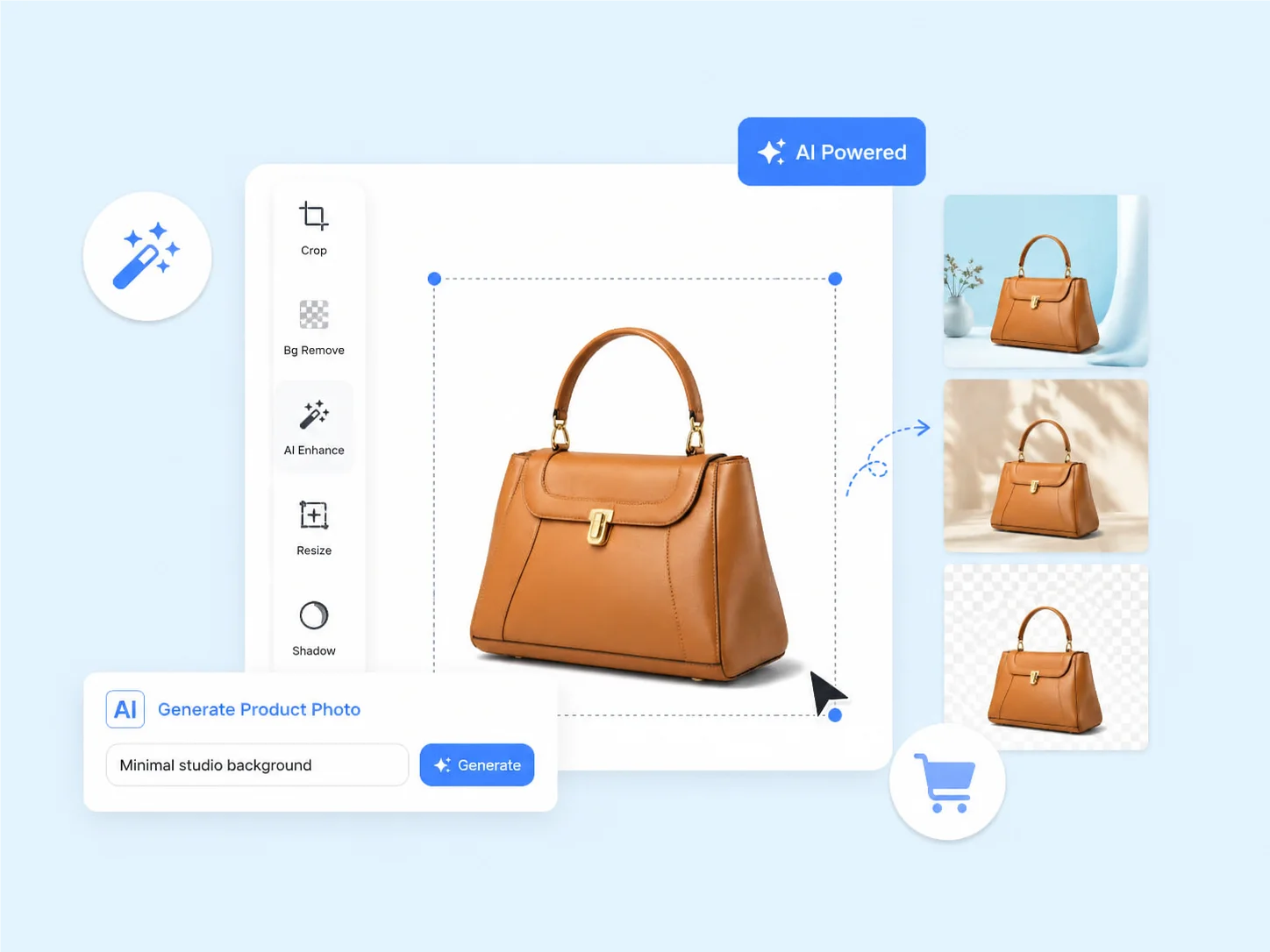
How to Edit Images with Text Prompts — A Step-by-Step Guide
Choose your starting point: one-click tool or prompt-based editing
Open the canvas editor and upload your product photo. For routine edits, use the one-click tools in the toolbar — background removal, upscaling, retouch, face swap, and virtual try-on work instantly without any prompt. For custom edits, select the AI Inpainting tool (to change a specific area), Background Generation (for a new setting), or Text-to-Image (to generate from scratch). The one-click tools handle 80% of e-commerce editing tasks without typing a single word.
Specify what you want with a text prompt
For inpainting: brush over the area to change, then describe what you want. 'Remove the watermark and fill with the surrounding wood texture.' 'Change this logo from red to navy blue.' For background generation: describe the new scene. 'Marble kitchen counter with soft morning light from a window on the right, clean and minimal.' For text-to-image: describe the full image. 'White ceramic mug on rustic wooden table, warm morning light, product photography.' Be specific — the AI responds to concrete details, not vague instructions.
Refine with model switching and iteration
Review the AI result. If the output is close but needs adjustment, tweak your prompt — add more detail about lighting, materials, or composition. Switch between AI models to see different interpretations of the same prompt: Nano Banana 2 for speed, Seedream for photorealism, GPT Image 2 for complex scenes. Each model handles the same prompt differently. Save your best prompts as templates for future use. Export the final result in PNG, JPEG, or WebP at marketplace-ready dimensions.
6 Real Prompt Examples — See the Before & After
Hover over each image to compare before and after. Copy and modify these prompts for your own product photos.
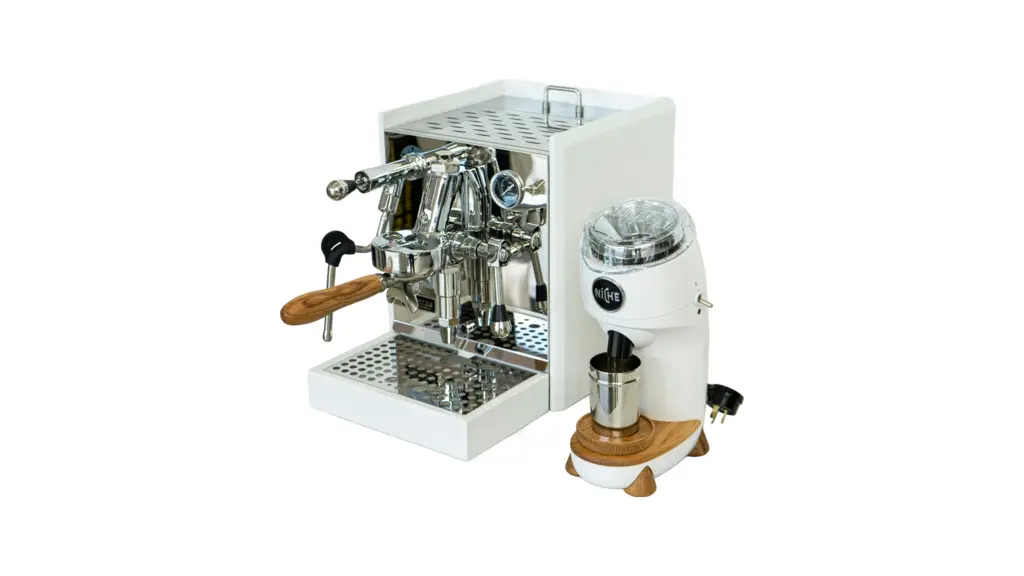
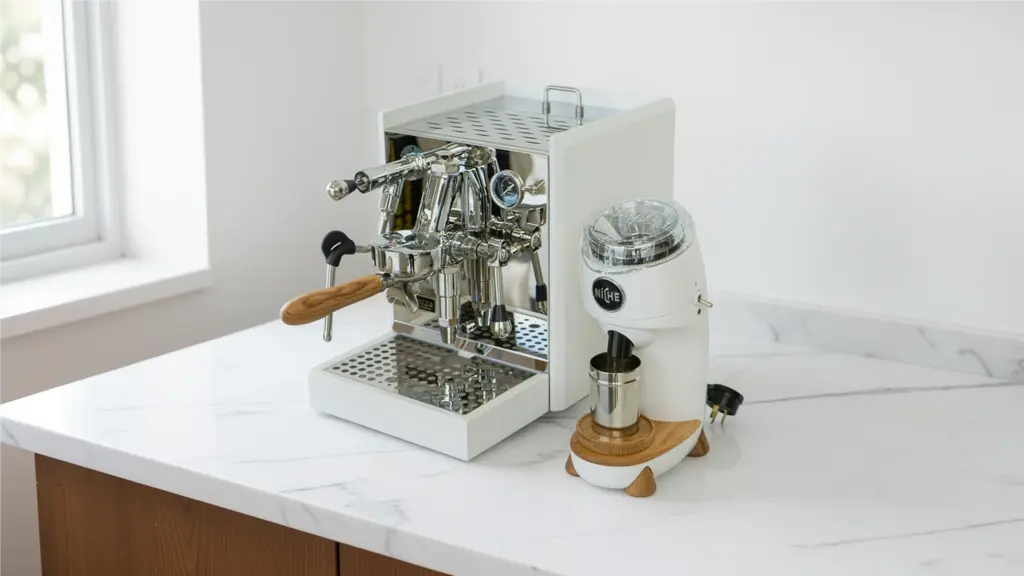
Replaces the entire background with a described lifestyle setting while keeping the product intact. The AI generates photorealistic marble, lighting, and spatial context that matches your product's lighting and perspective.
Prompt
Change the background to a modern kitchen with white marble countertops, soft natural window light from the left, clean and airy aesthetic
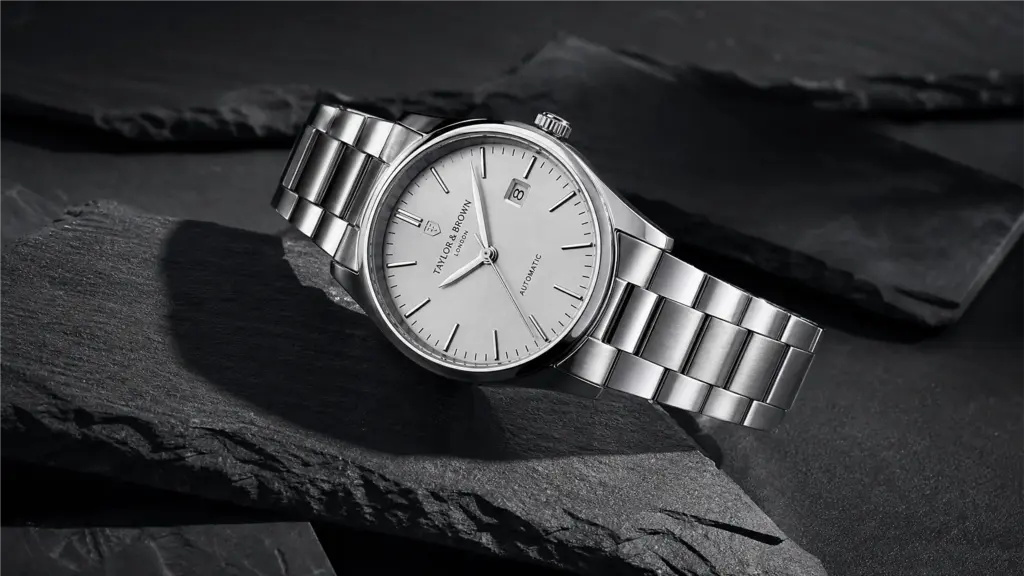
Generates an entirely new product image from a text description. No source photo needed. The AI creates the product, setting, lighting, and composition from scratch. Useful when you don't have existing product photos or want to visualize a new product concept.
Prompt
A minimalist silver watch on dark slate stone, dramatic side lighting casting long shadows, luxury product photography, 4K detail
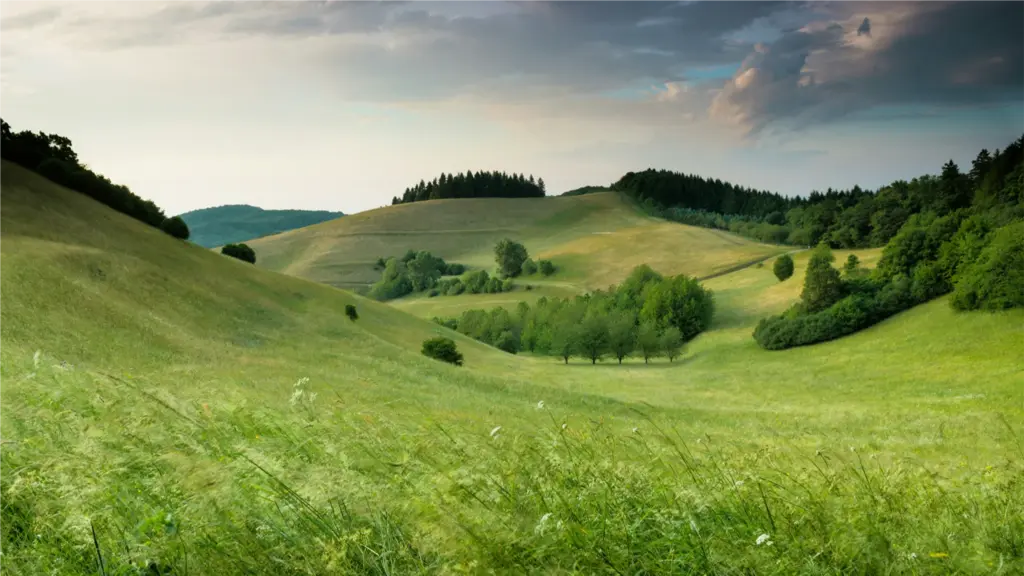
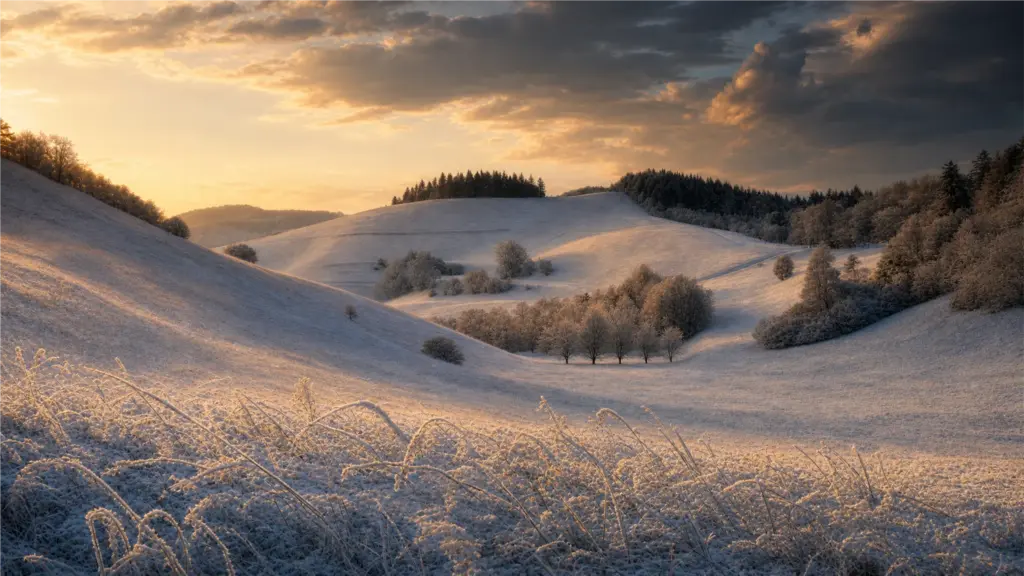
Transforms the entire scene to a different season while keeping the product unchanged. Combines background generation with scene-level detail instructions. Useful for updating your entire catalog's imagery for seasonal campaigns without reshooting.
Prompt
Change the season to winter — add soft snow on the ground, bare trees in the background, and warm golden light as if from a nearby window
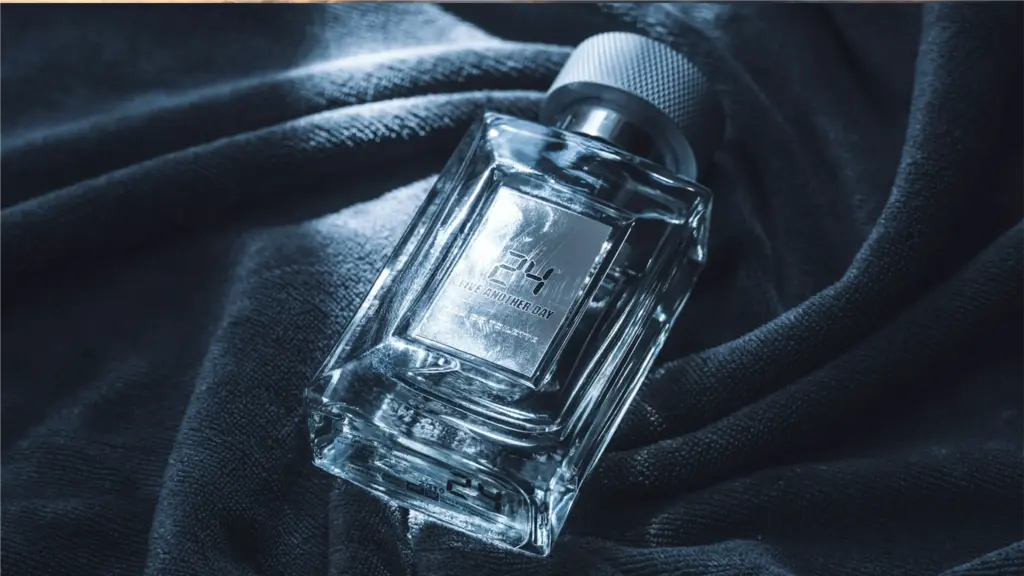
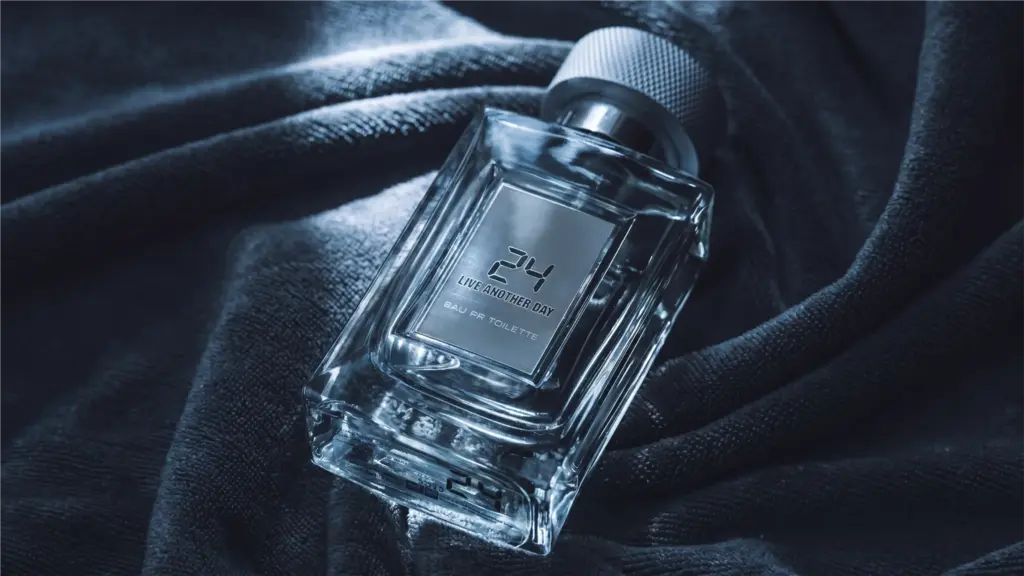
Targets unwanted reflections on glossy surfaces — glass, metal, plastic — and removes them while preserving the product details underneath. The AI reconstructs what the product looks like without the reflective glare.
Prompt
Remove the reflection on the glass surface, keep the underlying product details sharp and visible
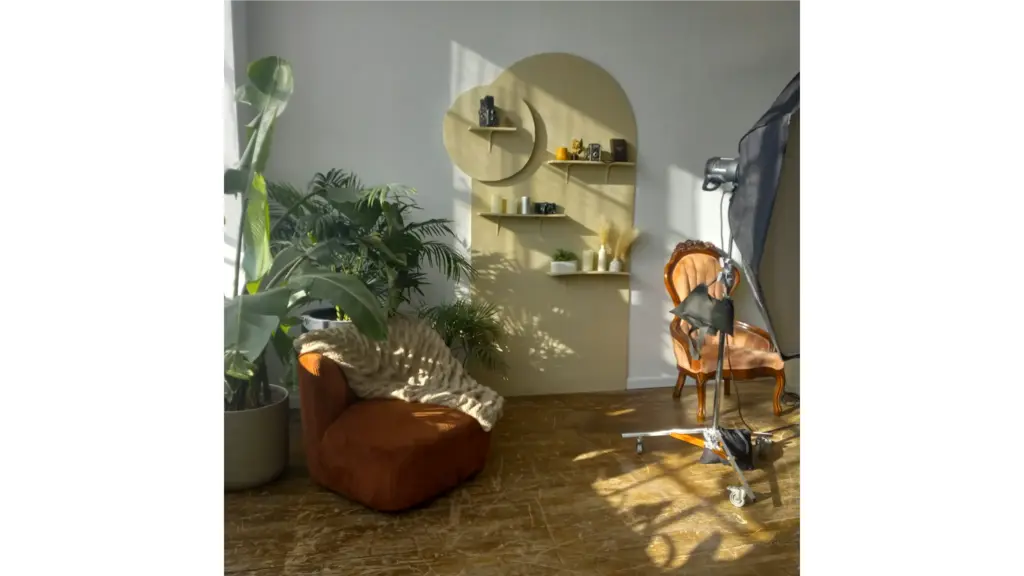
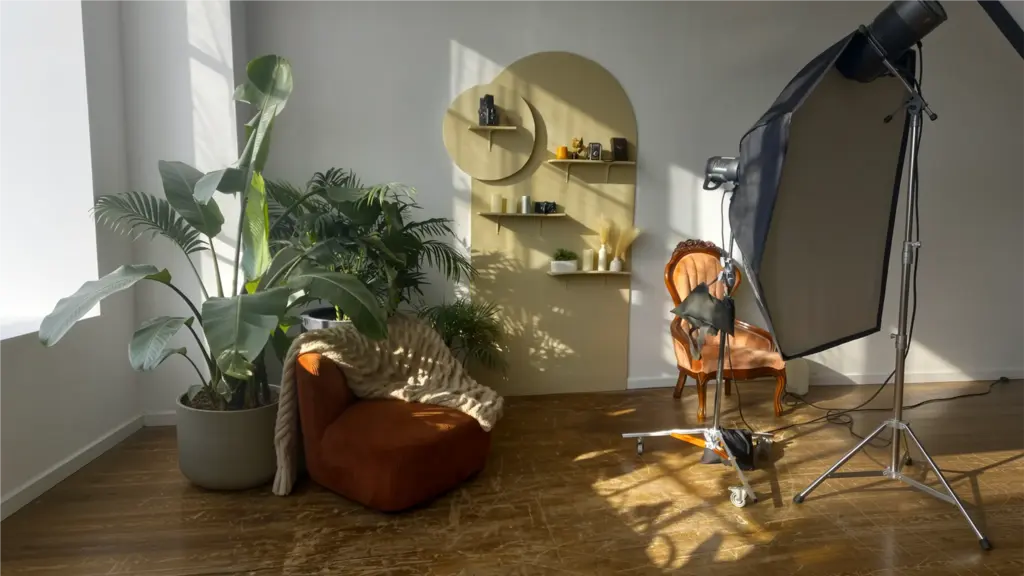
Expands the image canvas beyond its original boundaries and fills the new space with AI-generated content that matches the existing background. Used for creating space for text overlays, adjusting composition, or meeting platform dimension requirements without cropping the product.
Prompt
Extend the background canvas to the left and right, filling with matching seamless studio backdrop, same lighting and color temperature
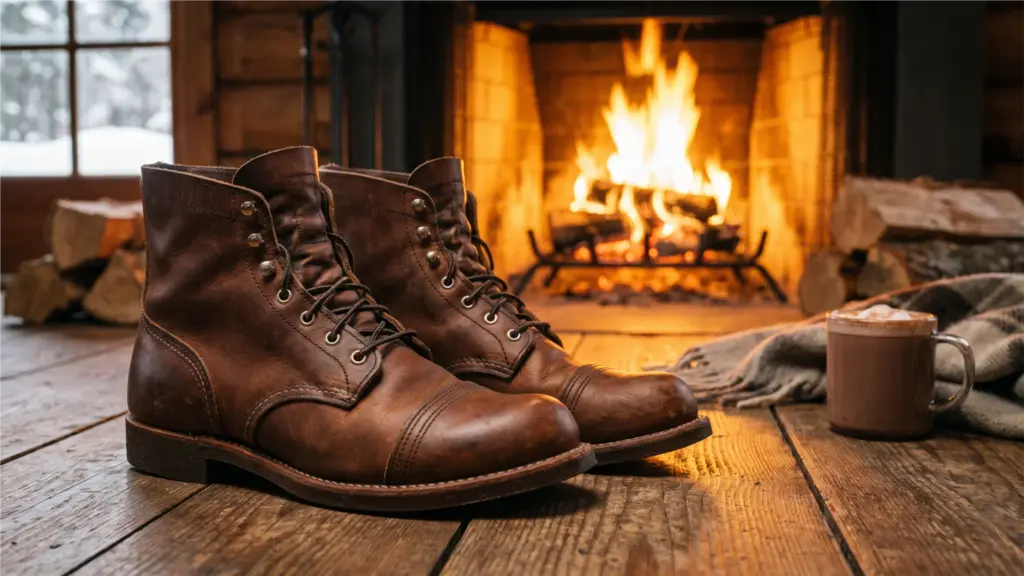
Creates a complete lifestyle scene from scratch — product, setting, props, atmosphere, and lighting. This prompt template works for any product category: swap 'brown leather boots' for your product and adjust the setting to match your brand. Best for hero images and marketing banners.
Prompt
A pair of brown leather boots on a wooden cabin floor, warm fireplace glow in the background, cozy winter atmosphere, product photography
Why Prompt-Based AI Editing Is Changing E-commerce Photography
Edit by describing, not by learning tools
Instead of learning the clone stamp, healing brush, lasso, and 20 other Photoshop tools, you describe what you want in plain English. The AI translates your words into pixel-perfect edits.
Most edits don't need prompts at all
Background removal, upscaling, retouch, face swap, and virtual try-on are pre-built one-click tools. 80% of e-commerce editing tasks are instant — no prompt required. Prompts are for creative flexibility beyond the defaults.
One prompt, 4 AI models — choose your style
The same prompt produces different results across Google Gemini, ByteDance Seedream, and OpenAI GPT Image 2. Test with the affordable model, finalize with the premium one.
Templates get you started in seconds
6 prompt templates above cover the most common editing scenarios. Copy, replace the product description, and get consistent results immediately — no prompt engineering learning curve.
Seasonal updates without reshoots
Change your product photography from summer to winter, studio to lifestyle, or minimalist to festive — all by editing the prompt. One product photo, infinite scenes.
Inpainting gives you surgical precision
Brush exactly what you want to change, describe the edit, and the AI modifies only that area. Surrounding pixels stay untouched. No masks, no selections, no feathering.
Start Editing Product Photos with Prompts — Or Use One-Click Tools, Your Choice
Try prompt-based editing on your own product photos. Use the 6 templates above as starting points. Or stick with one-click tools for routine edits. Either way — no Photoshop skills required.